 Curious Mints
How I Built a Quick Apple Shortcut to Send Emails with Resend’s API
TL;DR
Wanted my Apple Shortcuts to email their results. One Get Contents of URL block hitting Resend's API with a Bearer token, done.
I’ve been playing around with Apple Shortcuts for a while now, setting up little automations here and there. Sometimes, it’s convenient to send the results of these shortcuts as an email—maybe to log a reminder, share a link, or just send a quick update. So, I created a simple Apple Shortcut that connects to Resend’s API and sends out an email.
Here’s a screenshot of the shortcut to make it easy to replicate.
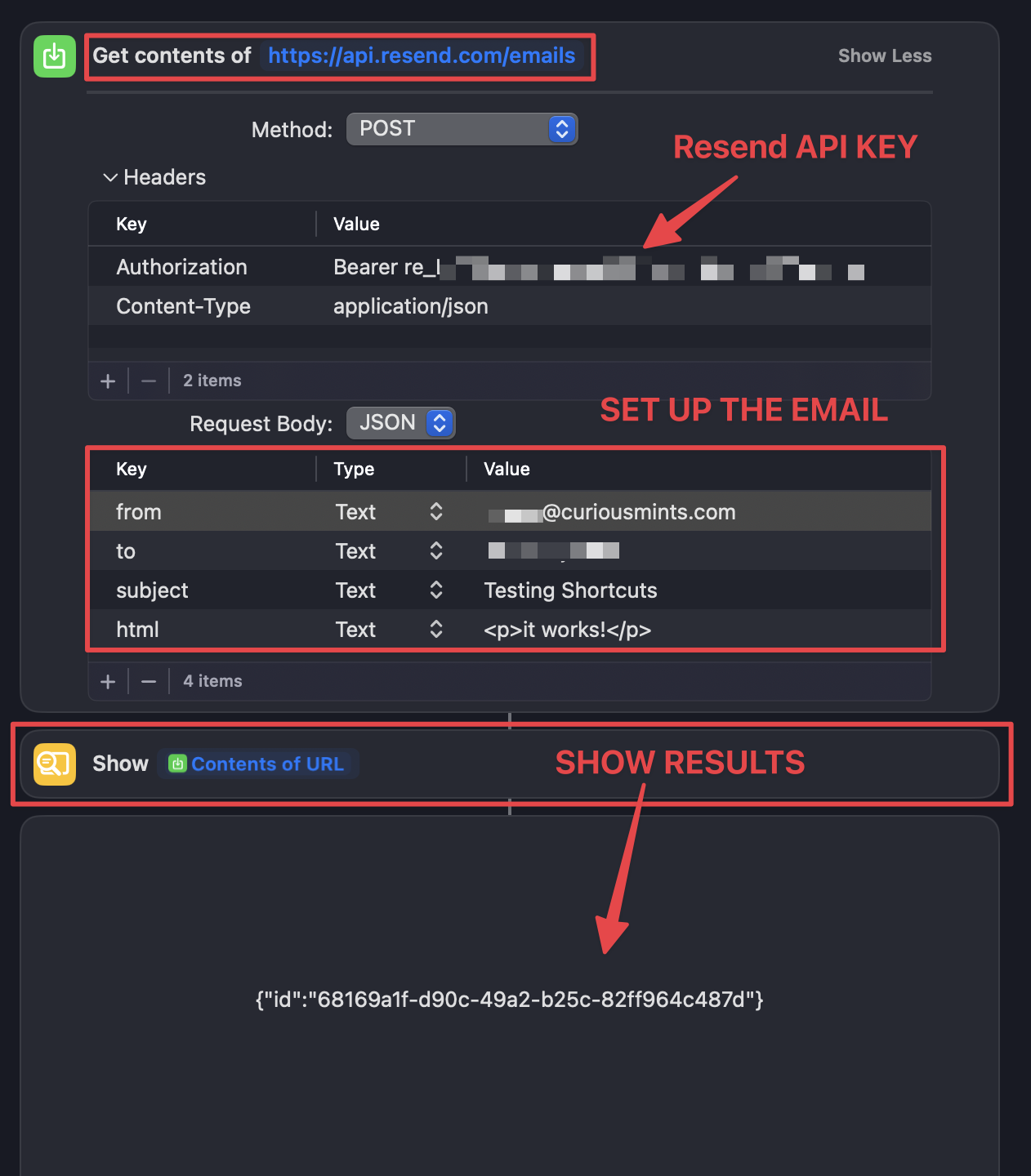
Here’s the basic setup:
- Get the URL Block: Start by using the “Get Contents of URL” block in Apple Shortcuts. This block lets you connect with Resend’s API.
- API Key and Authorization: You’ll need an API key from Resend (sign up or log in at resend.com to grab yours). Set up the authorization in the shortcut by using a Bearer token that Resend provides.
- Set Up the JSON Body: In the JSON body, include the following:
- “to”: The recipient’s email address
- “from”: Your sender address (must be authorized by Resend)
- “subject”: The subject of your email
- “html”: The body of the email, formatted in HTML (if you want simple text, HTML tags are optional)
- Run the Shortcut: Once it’s set up, you’re ready to go! Just run the shortcut, and it sends out the email as planned.
It’s a handy automation if you’re already using Apple Shortcuts and want to add email as a quick output option.
The summary at the top was generated by AI.